Using local AI models
Generate SQL from natural language using DuckDB-NSQL with Ollama for privacy-first AI
LLMs (Large Language Models) can be used to generate code from natural language questions. Popular examples
include
GitHub Copilot
,
OpenAI's GPT-4
or Meta's
Code Llama
.
DuckDB-NSQL is a Text-to-SQL model created by NumberStation for MotherDuck. It's hosted on
HuggingFace
and on
Ollama
, and can be used with different LLM runtimes. There are also some nice blog posts that are worth a read:
The model was specifically trained for the DuckDB SQL syntax with 200k DuckDB Text-to-SQL pairs, and is based
on the
Llama-2 7B model
.
Bring your own AI
If you want to enable SQL Workbench's privacy first AI integration for SQL generation, you first have to
install
Ollama
on your local machine.
Once you installed Ollama, you can either download the relevant
DuckDB-NSQL model
beforehand, or have it automatically downloaded on the first usage. If you want to pull the model yourself,
you can do this in your terminal (after you installed Ollama) by issuing the following command:
ollama pull duckdb-nsql:7b
Please be aware that the default model has a size of 3.8GB, which can take a while to
download, depending on your internet connection speed. There are
smaller quantized models
as well, but be aware that the answer quality might be lower with them.
Once the model is downloaded, Ollama can be started from your terminal:
OLLAMA_ORIGINS="https://sql-workbench.com" ollama serve
Setting the `OLLAMA_ORIGINS` environment variable to
https://sql-workbench.com is necessary to
enable CORS
from the SQL Workbench running in your browser for your locally running Ollama server.
You can enable the AI feature in SQL Workbench:
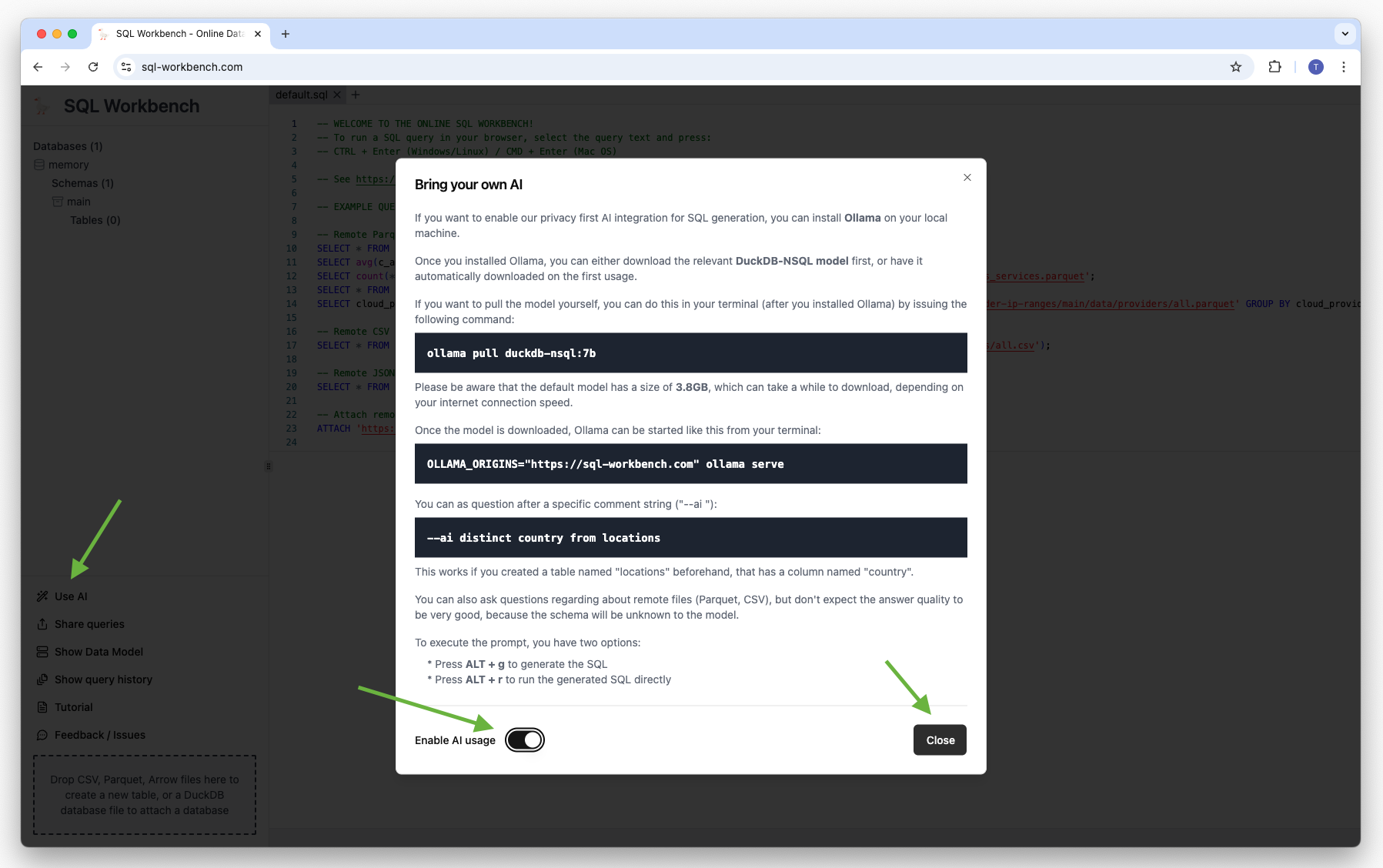
You need to create a local table first, as the AI model needs a schema to work with. For example, you can
create a table with AWS Edge Locations by using a remote dataset:
CREATE TABLE "locations" AS SELECT * FROM 'https://raw.githubusercontent.com/tobilg/aws-edge-locations/main/data/aws-edge-locations.parquet';Then, you can ask your questions after a specific comment string like below:
--ai your natural language question
To execute the prompt, you have two options:
-
Press
ALT + gto generate the SQL -
Press
ALT + rto run the generated SQL directly
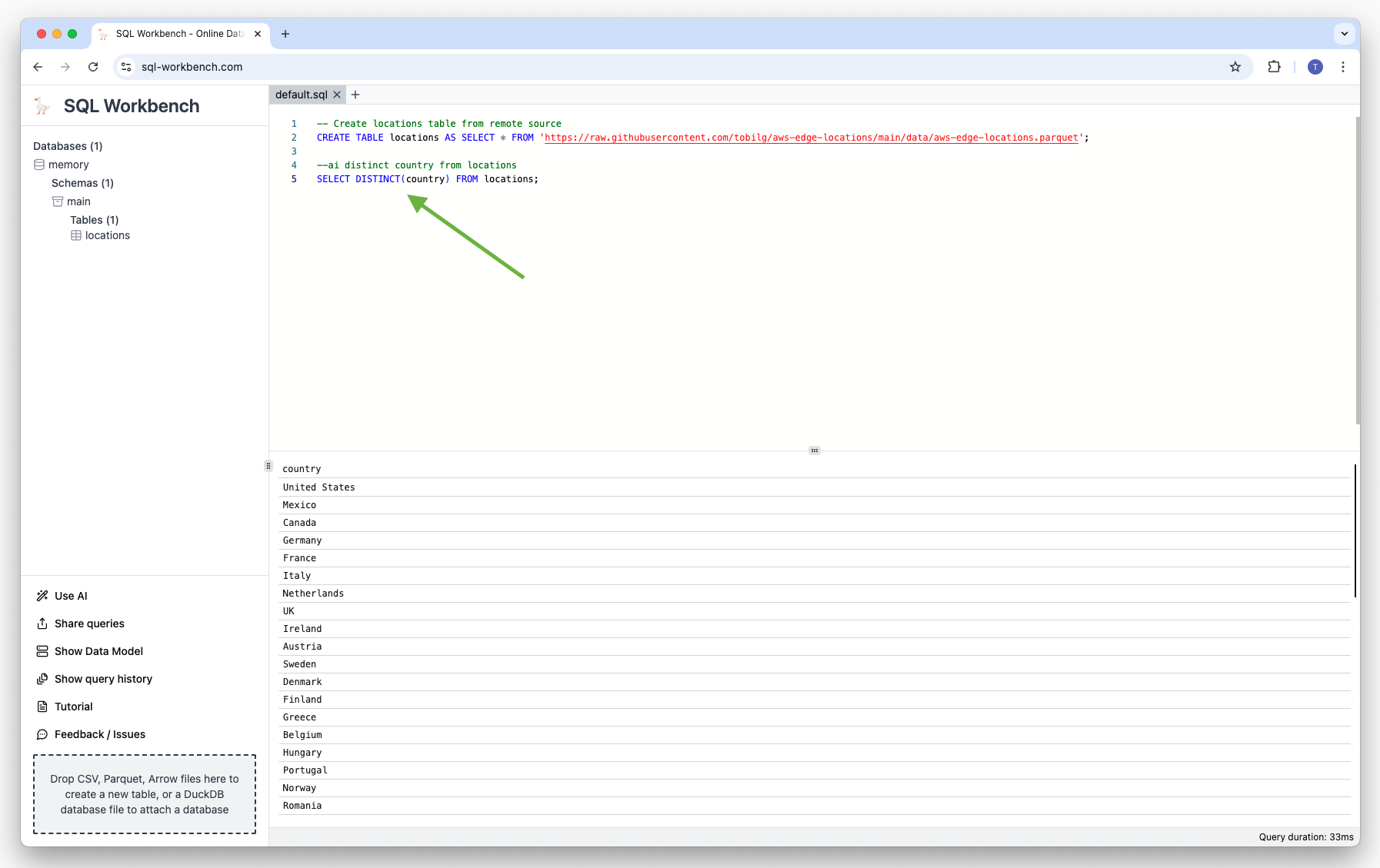
The generated SQL is automatically inserted below the closest prompt comment string. In case you have multiple
comment strings in the current SQL Workbench tab, the one closest to the actual cursor position is used.
IMPORTANT
You can also ask questions regarding about remote files (Parquet, CSV), but don't expect the answer quality
to be very good, because the schema will be unknown to the model.
The best practice would be to create a table first, and then ask questions about the data in that table.
Explore an example dataset with AI
AWS publishes its
Service Authorization Reference
documentation, and there's a
Github repository
that transforms the published data automatically to Parquet, CSV, JSON and DuckDB database formats every night
at 4AM UTC.
You first need to run the below statements to create a database structure:
CREATE TABLE services (
  service_id INTEGER PRIMARY KEY,
  "name" VARCHAR,
  prefix VARCHAR,
  reference_url VARCHAR
);

CREATE TABLE actions (
  action_id INTEGER PRIMARY KEY,
  service_id INTEGER,
  "name" VARCHAR,
  reference_url VARCHAR,
  permission_only_flag BOOLEAN,
  access_level VARCHAR,
  FOREIGN KEY (service_id) REFERENCES services (service_id)
);

CREATE TABLE condition_keys (
  condition_key_id INTEGER PRIMARY KEY,
  "name" VARCHAR,
  reference_url VARCHAR,
  description VARCHAR,
  "type" VARCHAR
);

CREATE TABLE resource_types (
  resource_type_id INTEGER PRIMARY KEY,
  service_id INTEGER,
  "name" VARCHAR,
  reference_url VARCHAR,
  arn_pattern VARCHAR,
  FOREIGN KEY (service_id) REFERENCES services (service_id)
);

CREATE TABLE resource_types_condition_keys (
  resource_type_condition_key_id INTEGER PRIMARY KEY,
  resource_type_id INTEGER,
  condition_key_id INTEGER,
  FOREIGN KEY (resource_type_id) REFERENCES resource_types (resource_type_id),
  FOREIGN KEY (condition_key_id) REFERENCES condition_keys (condition_key_id)
);

CREATE TABLE actions_resource_types (
  action_resource_type_id BIGINT PRIMARY KEY,
  action_id INTEGER,
  resource_type_id INTEGER,
  required_flag BOOLEAN,
  FOREIGN KEY (action_id) REFERENCES actions (action_id)
);

CREATE TABLE actions_condition_keys (
  action_condition_key_id BIGINT PRIMARY KEY,
  action_resource_type_id BIGINT,
  action_id INTEGER,
  condition_key_id INTEGER,
  FOREIGN KEY (action_id) REFERENCES actions (action_id),
  FOREIGN KEY (condition_key_id) REFERENCES condition_keys (condition_key_id)
);

CREATE TABLE actions_dependant_actions (
  action_dependent_action_id INTEGER PRIMARY KEY,
  action_resource_type_id BIGINT,
  action_id INTEGER,
  dependent_action_id INTEGER,
  FOREIGN KEY (action_id) REFERENCES actions (action_id),
  FOREIGN KEY (action_resource_type_id) REFERENCES actions_resource_types (action_resource_type_id)
);

INSERT INTO services SELECT * FROM 'https://raw.githubusercontent.com/tobilg/aws-iam-data/main/data/parquet/aws_services.parquet';
INSERT INTO resource_types SELECT * FROM 'https://raw.githubusercontent.com/tobilg/aws-iam-data/main/data/parquet/aws_resource_types.parquet';
INSERT INTO condition_keys SELECT * FROM 'https://raw.githubusercontent.com/tobilg/aws-iam-data/main/data/parquet/aws_condition_keys.parquet';
INSERT INTO actions SELECT * FROM 'https://raw.githubusercontent.com/tobilg/aws-iam-data/main/data/parquet/aws_actions.parquet';
INSERT INTO resource_types_condition_keys SELECT * FROM 'https://raw.githubusercontent.com/tobilg/aws-iam-data/main/data/parquet/aws_resource_types_condition_keys.parquet';
INSERT INTO actions_resource_types SELECT * FROM 'https://raw.githubusercontent.com/tobilg/aws-iam-data/main/data/parquet/aws_actions_resource_types.parquet';
INSERT INTO actions_condition_keys SELECT * FROM 'https://raw.githubusercontent.com/tobilg/aws-iam-data/main/data/parquet/aws_actions_condition_keys.parquet';
INSERT INTO actions_dependant_actions SELECT * FROM 'https://raw.githubusercontent.com/tobilg/aws-iam-data/main/data/parquet/aws_actions_dependant_actions.parquet';
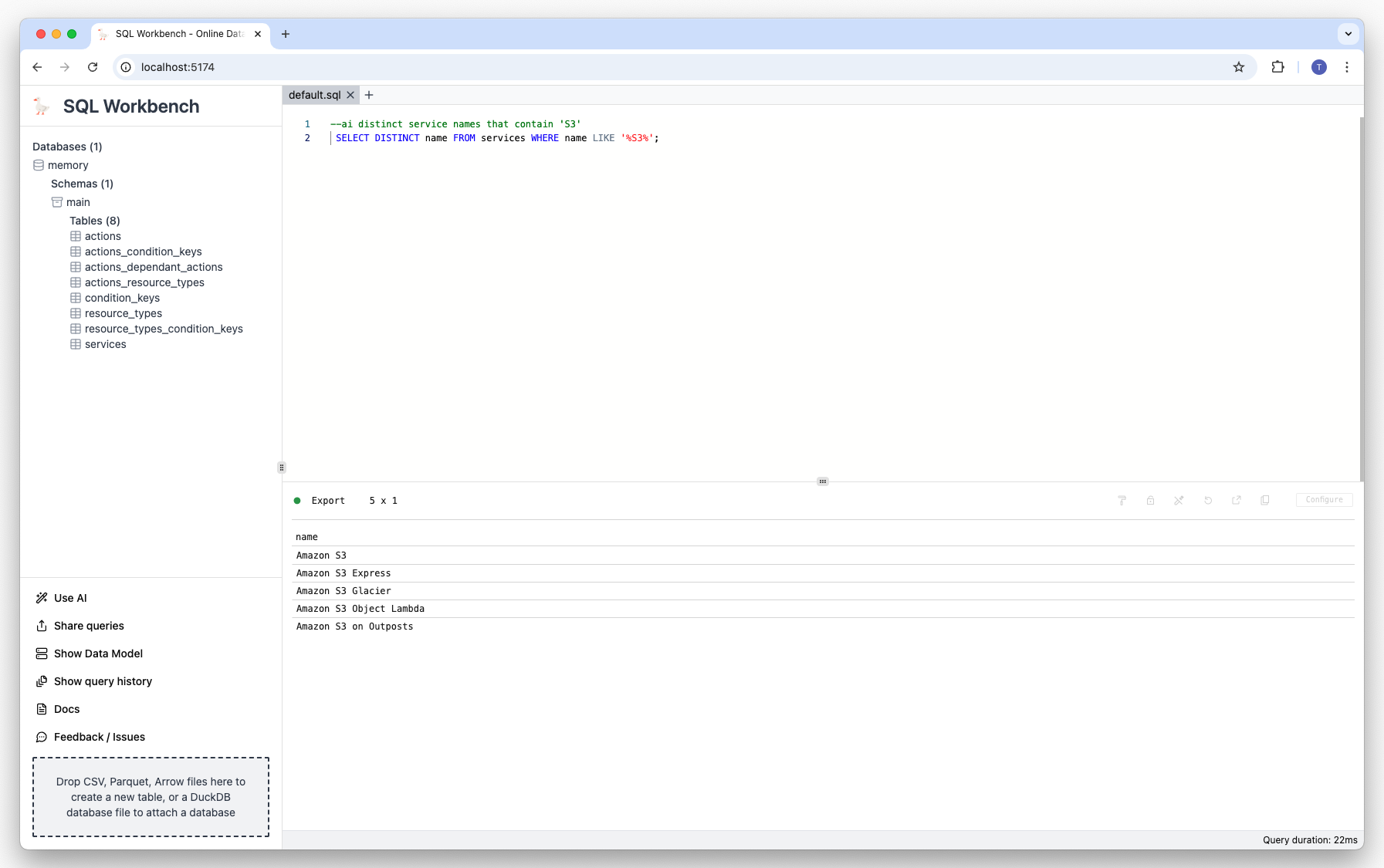
You can then explore the data with the DuckDB-NSQL model. For example, you can ask the model to show all
services that contain 'S3' in their name:
--ai distinct service names that contain 'S3'The model will generate an appropriate SQL statement, and execute it:
Other prompt examples
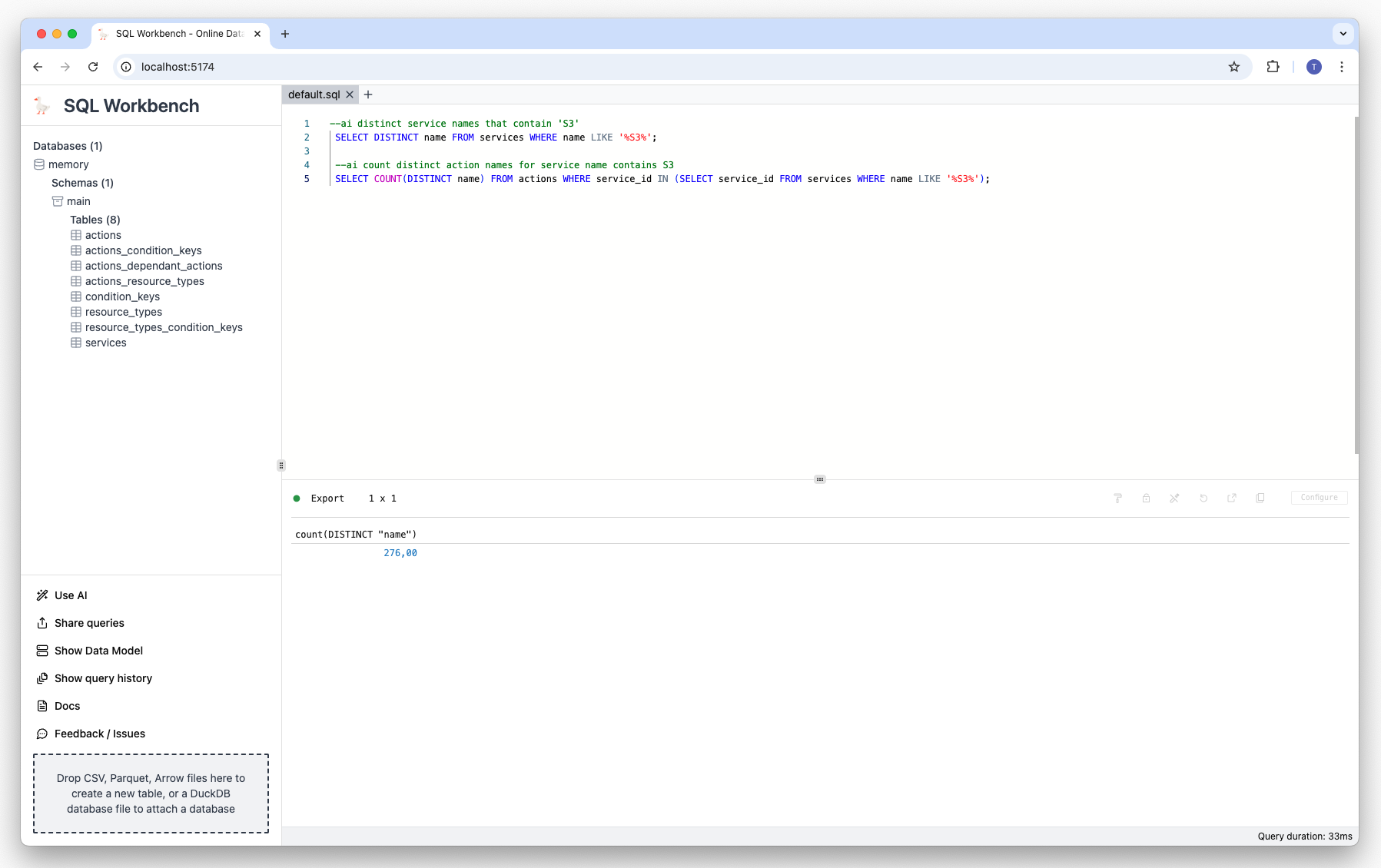
Prompt: Count the action names of services whose name contains 'S3':
--ai count distinct action names for service name contains S3 Result:
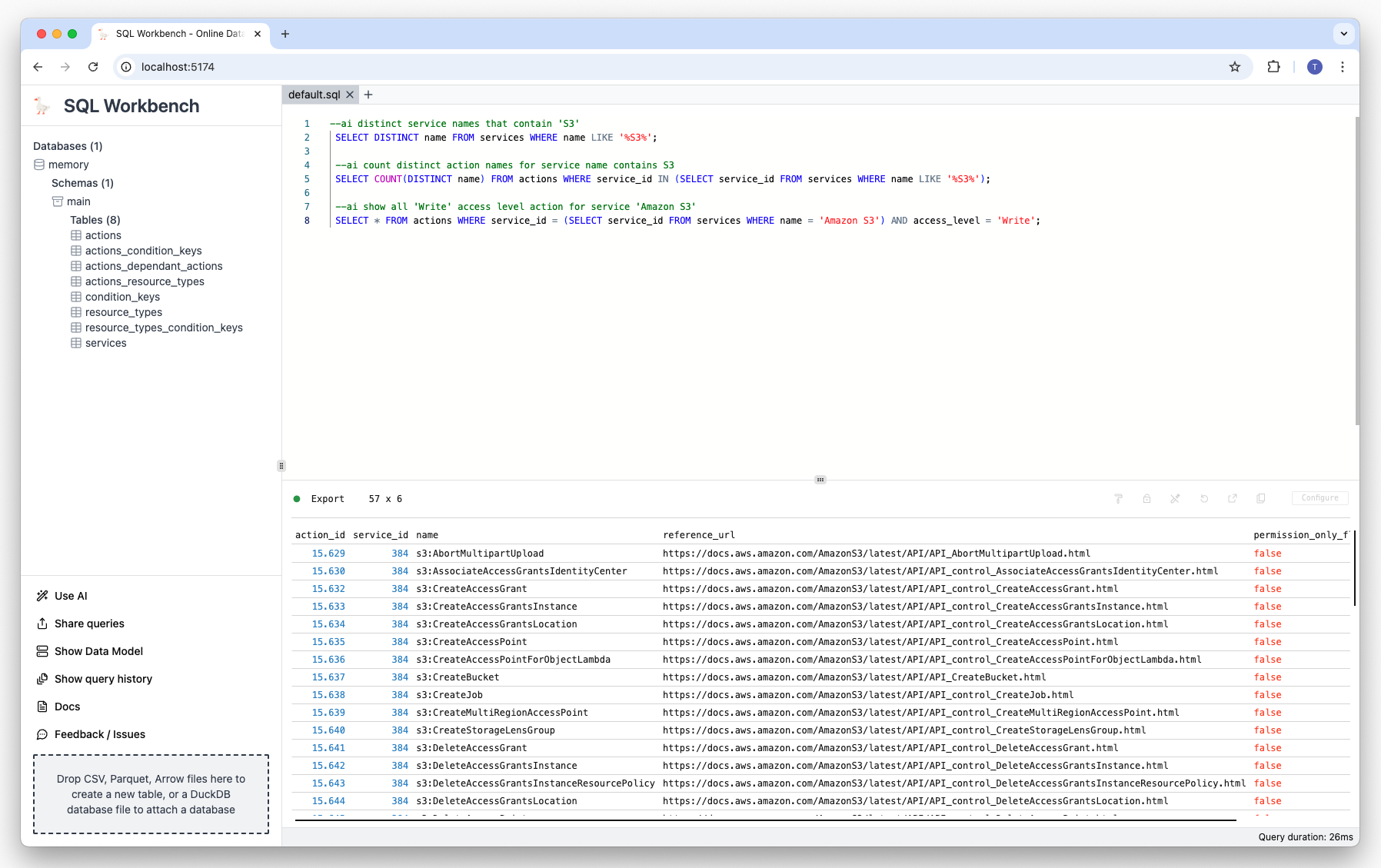
Prompt: Show all 'Write' access level actions for service 'Amazon S3':
--ai show all 'Write' access level action for service 'Amazon S3' Result:
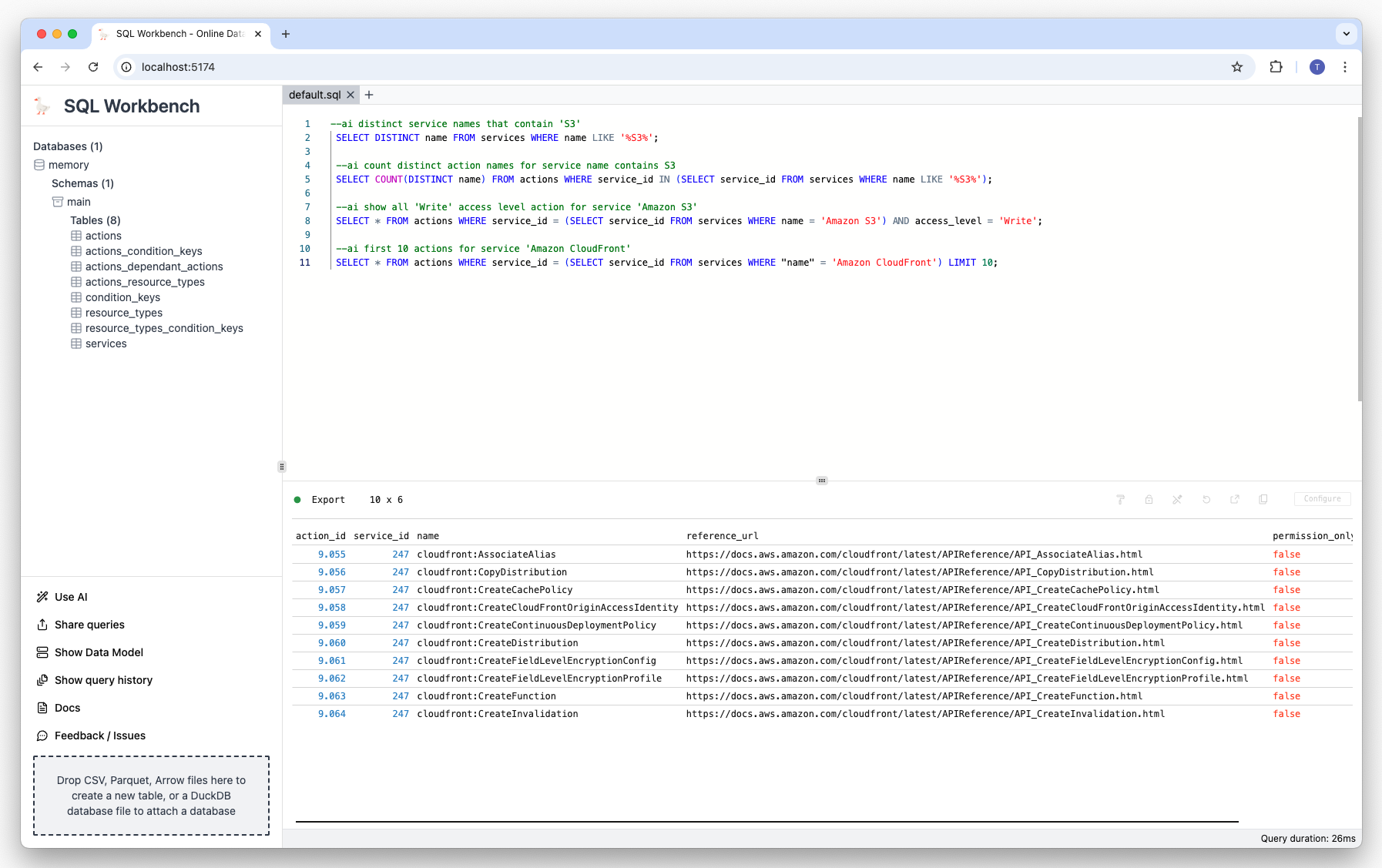
Prompt: Show first 10 actions for service 'Amazon CloudFront':
--ai first 10 actions for service 'Amazon CloudFront' Result:
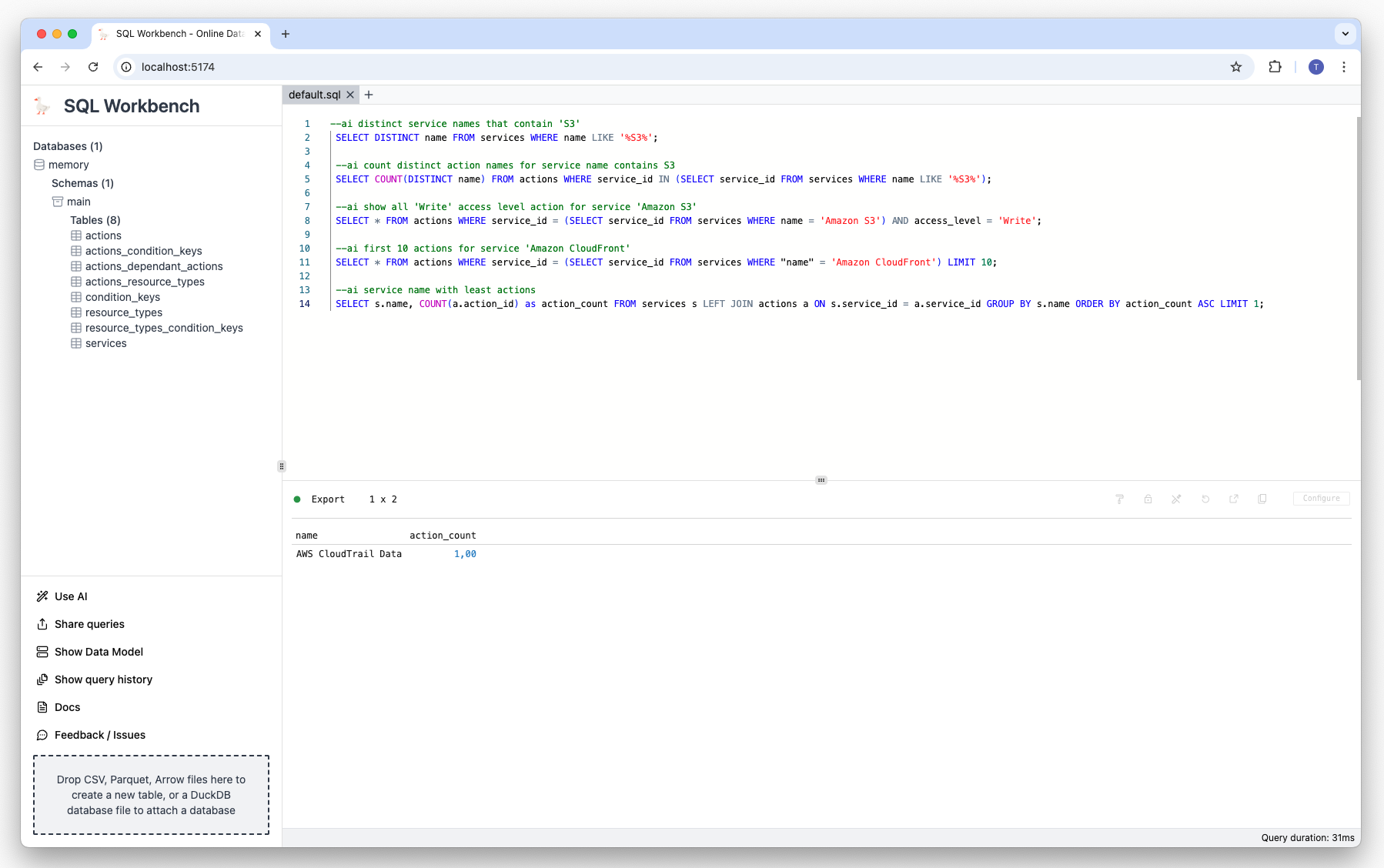
Prompt: Show service name with least actions:
--ai service name with least actions Result:
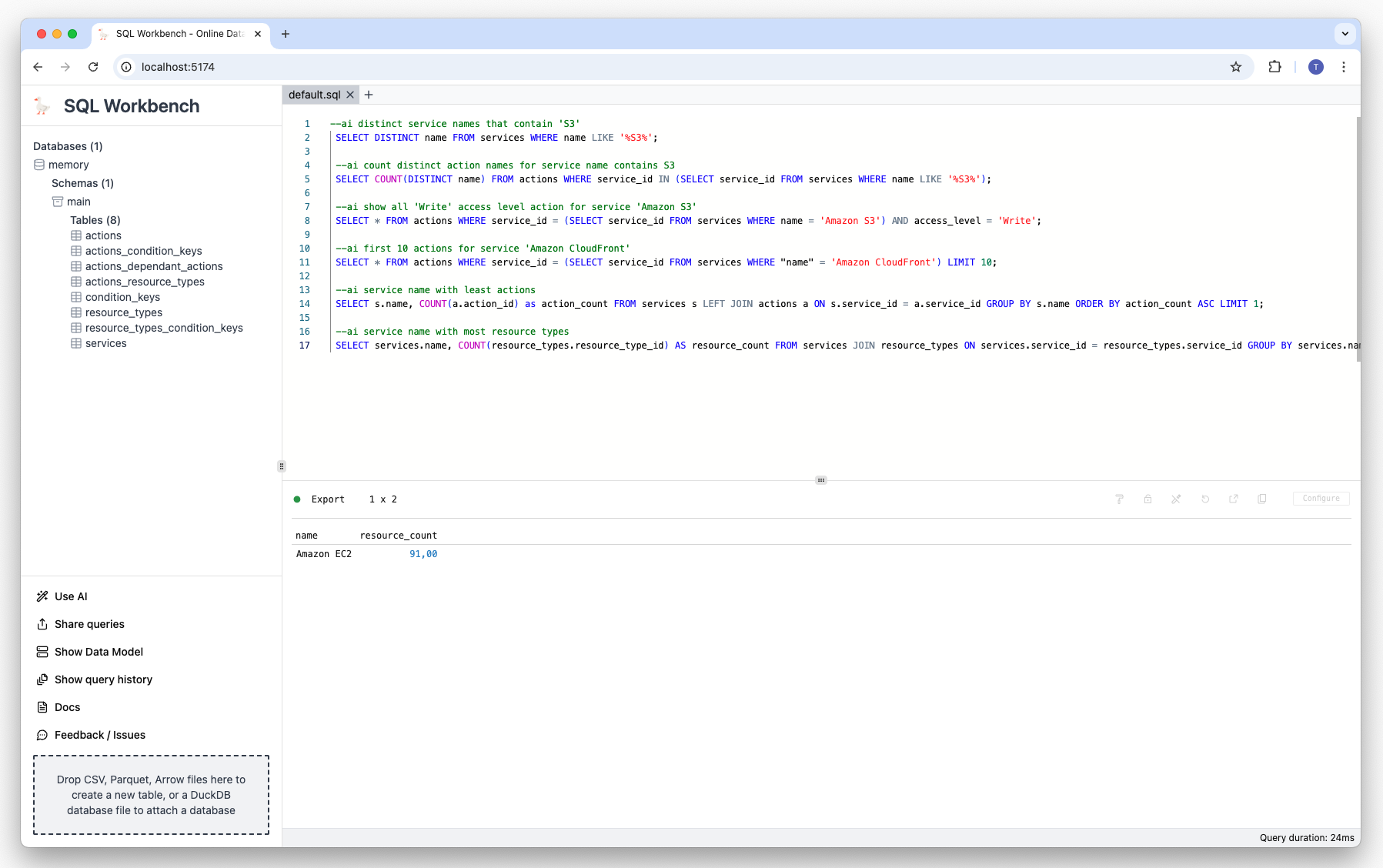
Prompt: Show service with most resource types:
--ai service name with most resource types Result:
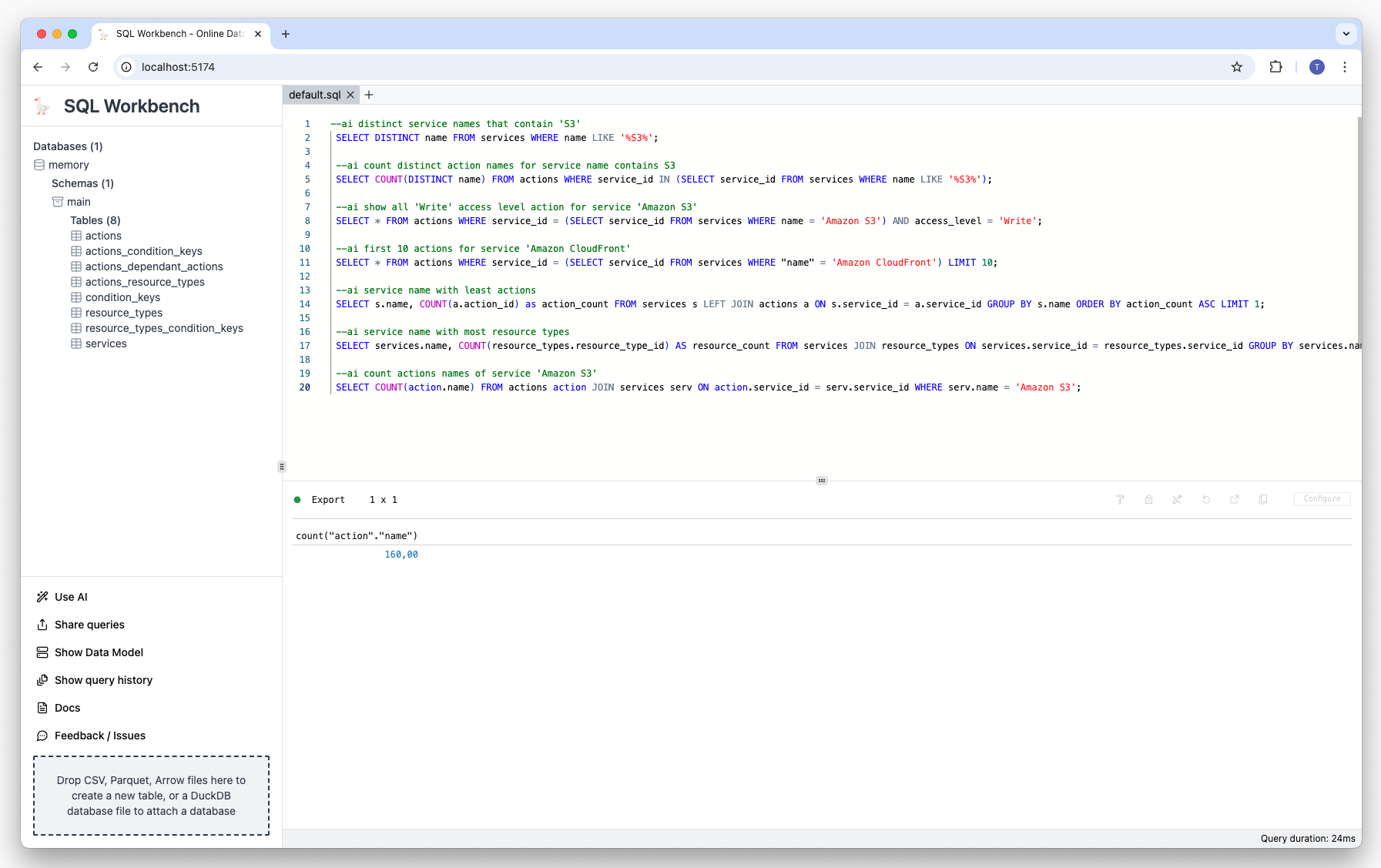
Prompt: Show the count of actions of service 'Amazon S3':
--ai count actions names of service 'Amazon S3' Result:
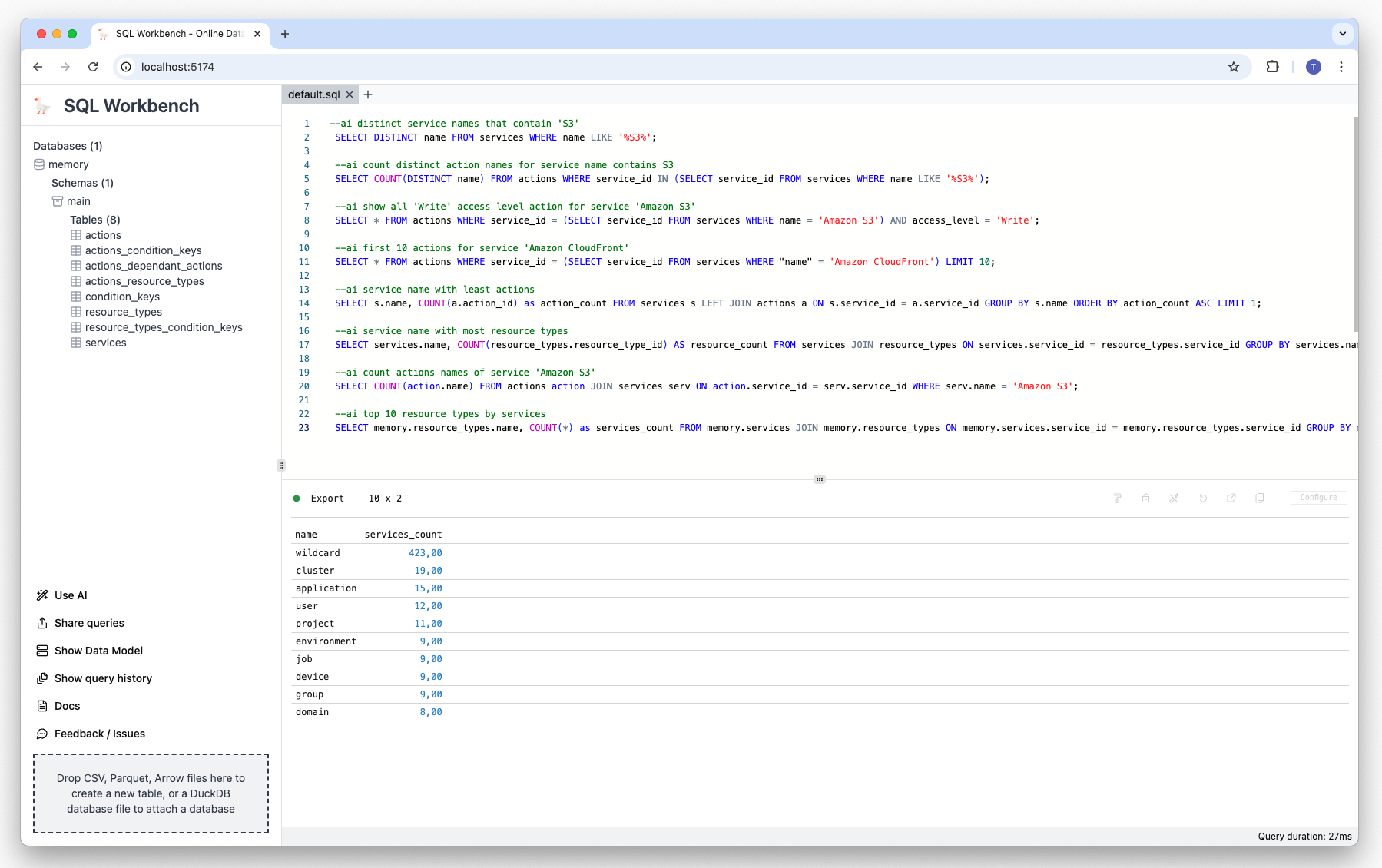
Prompt: Show the top 10 resource types by service:
--ai top 10 resource types by services Result:
Summary
Using a locally hosted LLM together with an in-browser SQL Workspace enables a cost-effective and
privacy-friendly way to use state of the art tools without needing to rely on third party services.
Demo video
There's a
demo video
on YouTube that showcases the AI features of SQL Workbench.